Ahh yes.
dnf install /lib/ld-linux.so.2 libX11.so.6 libpam.so.0 libstdc++.so.5 libnsl.so.1
Ahh yes.
dnf install /lib/ld-linux.so.2 libX11.so.6 libpam.so.0 libstdc++.so.5 libnsl.so.1
Pgcli is a command line interface for Postgres with auto-completion and syntax highlighting. Recently it gave a problem under fedora.
$ pgcli --host pg.example.com --port 1234 --username username --password --dbname pgdb
Traceback (most recent call last):
 File "/usr/bin/pgcli", line 11, in <module>
 load_entry_point('pgcli==1.7.0', 'console_scripts', 'pgcli')()
 File "/usr/lib/python2.7/site-packages/pkg_resources/__init__.py", line 572, in load_entry_point
 return get_distribution(dist).load_entry_point(group, name)
 File "/usr/lib/python2.7/site-packages/pkg_resources/__init__.py", line 2749, in load_entry_point
 return ep.load()
 File "/usr/lib/python2.7/site-packages/pkg_resources/__init__.py", line 2402, in load
 return self.resolve()
 File "/usr/lib/python2.7/site-packages/pkg_resources/__init__.py", line 2408, in resolve
 module = __import__(self.module_name, fromlist=['__name__'], level=0)
 File "/usr/lib/python2.7/site-packages/pgcli/main.py", line 40, in <module>
 from pgspecial.main import (PGSpecial, NO_QUERY)
 File "/usr/lib/python2.7/site-packages/pgspecial/__init__.py", line 12, in <module>
 from . import iocommands
 File "/usr/lib/python2.7/site-packages/pgspecial/iocommands.py", line 9, in <module>
 import psycopg2
 File "/usr/lib64/python2.7/site-packages/psycopg2/__init__.py", line 50, in <module>
 from psycopg2._psycopg import ( # noqa
ImportError: /usr/lib64/python2.7/site-packages/psycopg2/.libs/libresolv-2-c4c53def.5.so: symbol __res_maybe_init, version GLIBC_PRIVATE not defined in file libc.so.6 with link time reference
The resolution was to install the latest version directly from git using the pip3 command:
pip3 install git+https://github.com/dbcli/pgcli.git
I was delighted to discover that the main go to news site in the Netherlands nu.nl, is doing a daily podcast. I enjoy catching up on the RTÉ Morning Ireland, and the BBC Global News podcasts on the train, and I was looking forward to adding NU.NL to the list.
For some reason they are redirecting people to iOS, Android, or to sound cloud. This seems strange as their other feeds are available via RSS feed and the link displays a forbidden error when accessed. Without a RSS feed, it makes it difficult for my automatic tools to download and reprocess (speed up) the shows.
Thanks to the excellent site http://getrssfeed.com/ I was able to get the actual feed that is been used by iTunes and here it is
http://feeds.soundcloud.com/users/soundcloud:users:334709957/sounds.rss
I’ve contacted nu.nl, and hopefully they will also add the link to their home page.
This is what you’re looking for http://martin.hoppenheit.info/blog/2015/refresh-proxy-cache-with-curl/
In this post I will show you how to take a default Raspbian Image and safely enable ssh by allowing remote access only with authorized keys.
This post is also been released as a podcast on Hacker Public Radio.
Recently, and correctly, the official Raspbian Pixel distribution disabled ssh with the note that from now on SSH will be disabled by default on our images. To understand why this is a good thing please read A security update for raspbian pixel. In short, having 11 million computers out there in the hands of non security professionals, with a known username and password, is not a good idea.
That said there are many cases where you want to access your Pi remotely, and a key part of that is the ability to access it securely via ssh.
The Raspberry Pi site offers a solution for how to reactivate ssh. One option is via the GUI, Preferences > Interfaces> SSH > Enabled. Another is via the console sudo raspi-config > Interfacing Options > SSH > Yes > Ok > Finish. The third offers a more interesting option.
For headless setup, SSH can be enabled by placing a file named ssh, without any extension, onto the boot partition of the SD card. When the Pi boots, it looks for the ssh file. If it’s found, SSH is enabled, and the file is deleted. The content of the file does not matter: it could contain text, or nothing at all.
This is exactly what we want. Normally you would burn the image, then boot it in a Pi with a keyboard, screen and mouse attached, and then add the file. A shortcut to that would be to burn the image, eject it, insert it again, mount the sdcard boot partition, and then create a file called ssh.
I don’t like either of these solutions as they involve varying amounts of user intervention. I want a solution that will automatically leave me with a modified image at the end without any intervention (aka human error) on my part.
So I want to build a script that can handle the following steps:
I could add to this list and customize every aspect of the image, but my experience has shown that the more you modify, the more maintenance you will need to do. When changes are made to the base Raspbian image, you will need to fix your scripts, and worse is the job of updating all those already deployed Pi’s.
A better approach is to use the base images and control them with automation tools like Ansible, chef, puppet, cfengine, etc. This allows the images to be treated as Cattle rather than Pets, to see what that means see Architectures for open and scalable clouds, by Randy Bias, VP Technology at EMC, Director at OpenStack Foundation.
Another approach to consider would be to Network Boot your Raspberry Pi and in that way the sdcard is barely used, and all traffic is run off the network. If you are deploying a lot of pi’s in a area with a good physical network then this is a great option as well. This has the advantage that all the files are kept on the network and can be completely controlled from a central location.
If you can’t be bothered to stick around and find out how I did it, you can download the script fix-ssh-on-pi.bash. Remember that it’s intended more as inspiration rather than a working tool out of the box. I deliberately wrote it so you must edit it to make it fit your needs.
The remainder of this post is step by step instructions that lead to the creation of the script file, with credit being given to the sites that offered each part of the solution.
Go to the website and download either Raspbian Jessie with desktop, or Raspbian Jessie Lite the Minimal image.
You can use the tool sha1sum, to confirm they are not corrupt. The sha1sums can be found on the download page. The images are regularly updated, as are the checksums and these are the values when I started researching this post. The images had already been updated by the time I posted it, proving how necessary it’s to keep the changes small.
$ sha1sum 2017-06-21-raspbian-jessie.zip | grep 82a4ecfaadbef4cfb8625f673b5f7b91c24c8e32
$ sha1sum 2017-06-21-raspbian-jessie-lite.zip | grep a4b352525da188841ab53c859e61888030eb854e
I use the tool 7z to extract the img files. The tool is Free(dom) Software and is available in the repositories of most distributions. I like it because it’s truly the one tool to deal with all the sorts of compressed formats you may come across.
$ 7z x 2017-06-21-raspbian-jessie.zip
$ 7z x 2017-06-21-raspbian-jessie-lite.zip
I will also record the size of the files to compare later.
 $ ls -al 2017-06-21-raspbian-jessie*img
 -rw-r--r--. 1 user user 4659931113 Jun 21 12:11 2017-06-21-raspbian-jessie.img
 -rw-r--r--. 1 user user 1304672023 Jun 21 11:49 2017-06-21-raspbian-jessie-lite.img
Well it’s a bit by bit copy of the disk that the Raspbian Pixel developers have on their desks. That means that when you have matching checksums, you are guaranteed that every single one and zero on your sdcard is identical to the one they had on theirs. When you “burn” the image, you are taking this file, reading it and then writing it so that the order of every one and zero on your sdcard, is identical to the order on the developers sdcard.
What you end up with is a computer disk drive that starts with information telling the computer that it contains two different partitions, and what file systems they use. Both of these come stuffed with all the files that make up the Raspbian Pixel desktop. Have a quick look at the answer posted by SG60 to the question What is the boot sequence? for a great info graphic.
The linux mount command has a built in option to mount these files on your computer as another disk drive. People have been mounting CD and DVD images for years, taking advantage of the loop option in mount.
So according to the RaspberryPi.org article we need to add a file to the /boot directory called ssh. So to write the file we simply need to mount the filesystem so we can write to it. With the Raspbian image it’s a little bit more complicated, because unlike CD images, we do not know where the partitions start and end. There is partition information at the beginning of the sdcard but the size of this information could change on the next release. We can still mount it but we need to know the offset, or how far to skip forward, before the actual partition begins.
Exactly how much you need to skip forward was answered by user arrange in the post Mount single partition from image of entire disk (device) . The approach advised was to use the fdisk command with the –list and –units option to get the information needed to calculate the offset.
-l, --list
List the partition tables for the specified devices and then exit.
-u, --units[=unit]
When  listing  partition tables, show sizes in 'sectors' or in 'cylinders'.
To find out where the /boot image starts, we first need to see how many bytes are in a “Unit”. Then we need to find how many Units from the Start the partition is. In our case the units are 512 bytes, and the Start is 8192 for the /boot partition which I know happens to be labeled W95 FAT32 (LBA). The boot partition is usually the smallest one:
# fdisk --list --units 2017-06-21-raspbian-jessie.img
Disk 2017-06-21-raspbian-jessie.img: 4.3 GiB, 4659930624 bytes, 9101427 sectors
Units: sectors of 1 * 512 = 512 bytes
Sector size (logical/physical): 512 bytes / 512 bytes
I/O size (minimum/optimal): 512 bytes / 512 bytes
Disklabel type: dos
Disk identifier: 0x19ce0afe

Device                     Boot Start     End Sectors Size  Id Type
2017-06-21-raspbian-jessie.img1  8192   93486   85295 41.7M  c W95 FAT32 (LBA)
2017-06-21-raspbian-jessie.img2 94208 9101426 9007219  4.3G 83 Linux
So to do this we need to filter for the line with Units, and then get the second to last column. Here we use the awk command to do both the filtering and the extraction.
fdisk --list --units  "2017-06-21-raspbian-jessie.img" | awk '/^Units/ {print $(NF-1)}')
512
In the same way we can get the value for the Start
fdisk --list --units  "2017-06-21-raspbian-jessie.img" | awk '/W95 FAT32/ {print $2}'
8192
Now we have all we need to calculate the offset in bytes.
# echo $((8192 * 512))
4194304
And now putting it all together we can mount the image
mount -o loop,offset=4194304 2017-06-21-raspbian-jessie.img /mnt/sdcard
We can bundle all those commands together to give us enough to mount any similar image. Have a look at the Bash Series on Hacker Public Radio for a detailed in-depth look at these assignments.
extracted_image="2017-06-21-raspbian-jessie.img"
sdcard_mount="/mnt/sdcard"

echo "Mounting the sdcard boot disk"
unit_size=$(fdisk --list --units  "${extracted_image}" | awk '/^Units/ {print $(NF-1)}')
start_boot=$( fdisk --list --units  "${extracted_image}" | awk '/W95 FAT32/ {print $2}' )
offset_boot=$((${start_boot} * ${unit_size}))
mount -o loop,offset="${offset_boot}" "${extracted_image}" "${sdcard_mount}"
We can confirm it’s mounted
# mount | grep sdcard
/home/user/Downloads/2017-06-21-raspbian-jessie.img on /mnt/sdcard type vfat (rw,relatime,fmask=0022,dmask=0022,codepage=437,iocharset=ascii,shortname=mixed,errors=remount-ro)
And it’s also available to the file system on your computer
# ls -al /mnt/sdcard
total 21141
drwxr-xr-x. 3 root root 2048 Jan 1 1970 .
drwxr-xr-x. 25 root root 4096 Jun 14 13:28 ..
-rwxr-xr-x. 1 root root 15660 May 15 21:09 bcm2708-rpi-0-w.dtb
-rwxr-xr-x. 1 root root 15197 May 15 21:09 bcm2708-rpi-b.dtb
-rwxr-xr-x. 1 root root 15456 May 15 21:09 bcm2708-rpi-b-plus.dtb
-rwxr-xr-x. 1 root root 14916 May 15 21:09 bcm2708-rpi-cm.dtb
-rwxr-xr-x. 1 root root 16523 May 15 21:09 bcm2709-rpi-2-b.dtb
-rwxr-xr-x. 1 root root 17624 May 15 21:09 bcm2710-rpi-3-b.dtb
-rwxr-xr-x. 1 root root 16380 May 15 21:09 bcm2710-rpi-cm3.dtb
-rwxr-xr-x. 1 root root 50268 Apr 28 09:18 bootcode.bin
-rwxr-xr-x. 1 root root 229 Jun 21 12:11 cmdline.txt
-rwxr-xr-x. 1 root root 1590 Jun 21 10:50 config.txt
-rwxr-xr-x. 1 root root 18693 Aug 21 2015 COPYING.linux
-rwxr-xr-x. 1 root root 2581 May 15 21:09 fixup_cd.dat
-rwxr-xr-x. 1 root root 6660 May 15 21:09 fixup.dat
-rwxr-xr-x. 1 root root 9802 May 15 21:09 fixup_db.dat
-rwxr-xr-x. 1 root root 9798 May 15 21:09 fixup_x.dat
-rwxr-xr-x. 1 root root 145 Jun 21 12:11 issue.txt
-rwxr-xr-x. 1 root root 4577000 May 15 21:09 kernel7.img
-rwxr-xr-x. 1 root root 4378160 May 15 21:09 kernel.img
-rwxr-xr-x. 1 root root 1494 Nov 18 2015 LICENCE.broadcom
-rwxr-xr-x. 1 root root 18974 Jun 21 12:11 LICENSE.oracle
drwxr-xr-x. 2 root root 9728 Jun 21 10:36 overlays
-rwxr-xr-x. 1 root root 657828 May 15 21:09 start_cd.elf
-rwxr-xr-x. 1 root root 4990532 May 15 21:09 start_db.elf
-rwxr-xr-x. 1 root root 2852356 May 15 21:09 start.elf
-rwxr-xr-x. 1 root root 3935908 May 15 21:09 start_x.elf
With the disk available to use we can easily create an empty file using a text editor. I will use the touch command to do this:
# touch /mnt/sdcard/ssh
# ls -al /mnt/sdcard/ssh
-rwxr-xr-x. 1 root root 0 Jul 5 17:37 /mnt/sdcard/ssh
We are not finished yet but for the moment I will unmount the image using umount /mnt/sdcard.
At this point you could just use the image but you would be putting your system at risk. If you did you will also get a pop up warning from Raspbian to tell you how unsafe your system is. You may not be worried about anyone accessing something on the Pi, or even your network. However this computer in its present state can still be exploited by someone. The nasty things that they do can all be traced back to your home or business. So let’s do the right thing and configure access only via ssh-keys.
Surprisingly this is one of the few cases where using a secure system is actually a lot more convenient than normal. With the image as it’s now, you would need to type in the username pi and password Raspbian every single time you want to access the server. When we are finished you can just enter your password for your keys once, and after that you can ssh to any server without ever being presented with a login prompt !
Have a read of “How to setup SSH keys and why?“, by Ravi for a nice overview.
We will use the ssh-keygen command, and use -t to specify the key type, -f to specify where to write the file, and -C to add a comment. You will be asked to enter a password for the private key. Make sure this is a nice long and complicated but easy to remember one.
# ssh-keygen -t ed25519 -f ./id_ed25519 -C "Raspberry Pi keys for Ansible"
Generating public/private ed25519 key pair.
Enter passphrase (empty for no passphrase):
Enter same passphrase again:
Your identification has been saved in ./id_ed25519.
Your public key has been saved in ./id_ed25519.pub.
The key fingerprint is:
SHA256:rHS3ccWV02X35Jhk5Qtfpe8VP6otTVRFNicf9Cb3S+w Raspberry Pi keys for Ansible
The key's randomart image is:
+--[ED25519 256]--+
|              =*^|
|             + ^X|
|             .O.@|
|       .     o+=*|
|      . S o o  *=|
|     . o . + .+.+|
|      .   . o. E.|
|           .o.   |
|           ...   |
+----[SHA256]-----+
As expected this will create two files. The private key has no extension, and the public one ends with .pub.
# ls -haltr id_ed25519*
-rw-r--r--. 1 root root 111 Jul 12 13:07 id_ed25519.pub
-rw-------. 1 root root 419 Jul 12 13:07 id_ed25519
You should be very careful to keep your private key secret (id_ed25519 in our example). The other file id_ed25519.pub is your public key and it doesn’t matter who has access to that. For a great explanation of why it doesn’t matter I recommend watching this video. It is stitched together from the course in Modern cryptography done by Brit Cruise of the Khan Academy.
I have no intention of ever using these keys, so I will display their contents here.
The public key will be kept in a safe place and never distributed to the sdcards. Don’t forget to make a few backups.
# cat id_ed25519
-----BEGIN OPENSSH PRIVATE KEY-----
b3BlbnNzaC1rZXktdjEAAAAABG5vbmUAAAAEbm9uZQAAAAAAAAABAAAAMwAAAAtzc2gtZW
QyNTUxOQAAACBolD9Vd7dNmbbyUUvtY5kwQf7+cucR9kEjUdt6JgEOTQAAAKCj+dG4o/nR
uAAAAAtzc2gtZWQyNTUxOQAAACBolD9Vd7dNmbbyUUvtY5kwQf7+cucR9kEjUdt6JgEOTQ
AAAEA4xoxtetO+V9hv+TD/WMIWcD8JSLNQuzonezfO1+kAi2iUP1V3t02ZtvJRS+1jmTBB
/v5y5xH2QSNR23omAQ5NAAAAHVJhc3BiZXJyeSBQaSBrZXlzIGZvciBBbnNpYmxl
-----END OPENSSH PRIVATE KEY-----

# cat id_ed25519.pub
ssh-ed25519 AAAAC3NzaC1lZDI1NTE5AAAAIGiUP1V3t02ZtvJRS+1jmTBB/v5y5xH2QSNR23omAQ5N Raspberry Pi keys for Ansible
Now that you have your ssh keys ready, we are ready to copy the public key to the Raspbian image. The private key you should copy into your own .ssh/ directory to your own home directory, on your computer.
The changes we now need to make are all on the same image but in the other partition. We can use the same trick we did earlier and mount the other partition. Remember that we are looking for file system type Linux instead of W95 FAT32 (LBA). So these commands will just mount the other partition for us, we are using the same mount point on our own computer:
extracted_image="2017-06-21-raspbian-jessie.img"
sdcard_mount="/mnt/sdcard"

echo "Mounting the sdcard root disk"
unit_size=$(fdisk --list --units  "${extracted_image}" | awk '/^Units/ {print $(NF-1)}')
start_boot=$( fdisk --list --units  "${extracted_image}" | awk '/Linux/ {print $2}' )
offset_boot=$((${start_boot} * ${unit_size}))
mount -o loop,offset="${offset_boot}" "${extracted_image}" "${sdcard_mount}"
The second partition on the sdcard is now mounted allowing us to modify it easily.
Normally you would use a tool called ssh-copy-id to copy the public keys to the raspberry pi, using username and password for login. It actually creates, or adds to, a special file called authorized_keys in a hidden .ssh directory of the users home directory, with very restricted file access permissions on the directory and file level.
If we want to do this on the mounted image partition, we first need to create the directory, then change permissions to octal 0700. This will allow the owner to, read, write, and execute (change into) the directory.
# mkdir /mnt/sdcard/home/pi/.ssh
# chmod 0700 /mnt/sdcard/home/pi/.ssh
# chown 1000:1000 /mnt/sdcard/home/pi/.ssh
# ls -aln /mnt/sdcard/home/pi/ | grep .ssh
drwx------. 2 1000 1000 4096 Jul 12 13:55 .ssh
Now that the directory is in place we can copy over the public key. I’m using the cat (from concatenate) command, to simulate what ssh-copy-id would do. We know the file is not there, so it will create it. If the file was there this command would add the new key to the end of it.
# cat id_ed25519.pub >> /mnt/sdcard/home/pi/.ssh/authorized_keys
And it’s copied over.
# cat /mnt/sdcard/home/pi/.ssh/authorized_keys
ssh-ed25519 AAAAC3NzaC1lZDI1NTE5AAAAIGiUP1V3t02ZtvJRS+1jmTBB/v5y5xH2QSNR23omAQ5N Raspberry Pi keys for Ansible
As you can imagine, ssh is very paranoid about its settings. All the permissions on the directory and files are checked on each login. If any are missing or have the wrong access permissions set, it will not allow you to access the system. While this may be frustrating when you are troubleshooting, just remember it’s for your own good.
The chown command is used to change the owner of the file. You normally could use the username pi, but as we are setting this on a different computer, that user doesn’t exist. To get around this we need to use the id number for the pi user and the pi group.
# egrep "^pi" /mnt/sdcard/etc/passwd
pi:x:1000:1000:,,,:/home/pi:/bin/bash
# egrep "^pi" /mnt/sdcard/etc/group
pi:x:1000:
As we can see that is 1000 in both cases, so knowing this we can fix the ownership and access permissions. This time we use octal 0600 which will not allow the file to execute. For a file, that means not allowing the file to run computer code.
# chown 1000:1000 /mnt/sdcard/home/pi/.ssh/authorized_keys
# chmod 0600 /mnt/sdcard/home/pi/.ssh/authorized_keys
# ls -aln /mnt/sdcard/home/pi/.ssh/authorized_keys
-rw-------. 1 1000 1000 111 Jul 12 13:55 /mnt/sdcard/home/pi/.ssh/authorized_keys
I also want to make some changes to how the ssh server operates. Getting started with SSH security and configuration is a good, if IBM specific, introduction to the topic.
We want to prevent any login by the user root over ssh, and only allow login with ssh-keys. This means changing two settings in the configuration for the ssh server that will run on the Pi itself. It’s the program that listens for connections from your PC. The man page for sshd_config shows us the two changes we need to make.
PermitRootLogin If this option is set to no, root is not allowed to log in (via ssh).
PasswordAuthentication Specifies whether password authentication is allowed. The default is yes.
We will use the sed command below. If this doesn’t make any sense then see the complete guide to sed by fellow Hacker Public Radio contributor Dave Morriss. I’m using the ‘;‘ as a delimiter.
sed -e 's;^#PasswordAuthentication.*$;PasswordAuthentication no;g' -e 's;^PermitRootLogin .*$;PermitRootLogin no;g' -i /mnt/sdcard/etc/ssh/sshd_config
Normally you would use passwd to change your password, but in our case we are directly editing the files where they are stored. Back in the day the passwords were kept in the /etc/passwd file. However that has long since moved to /etc/shadow. Here we can check the current settings for the root and pi user on the image.
# egrep 'root|pi' /mnt/sdcard/etc/passwd
root:x:0:0:root:/root:/bin/bash
pi:x:1000:1000:,,,:/home/pi:/bin/bash
The :x: in the second column shows that the “encrypted password is stored in /etc/shadow file”.
# egrep 'root|pi' /mnt/sdcard/etc/shadow
root:*:17338:0:99999:7:::
pi:$6$hio1BNCX$Qux8hGsSy.a.pEoI/TkcGGJlEJOdCAgcTtImxDugQVO1e.6cxgsQ4pFRL2cJvn9AjCZKX4RfOgupS2gQrFhrF/:17338:0:99999:7:::
We are going to use a small python program which I found in the question “How to create an SHA-512 hashed password for shadow?“. The answer by davey gives a way to do this that we can use in our script. The example password I’m using is from XKCD, but you should use something else because the password correct horse battery staple is now to be found in every list of passwords to try.
Note: that your hash will be different to this:
# root_password="$( python3 -c 'import crypt; print(crypt.crypt("correct horse battery staple", crypt.mksalt(crypt.METHOD_SHA512)))' )"
# echo ${root_password}
$6$Fx9Jh3AIHbOYrIOd$lsrwr1d2cVl0crybGGgZZclpEcVivPhA5N8LAhHQoKOOrM.tFQV/fmWpfdGzGsJVtaaYFARk1YKt/TVfZzMCC/
We also want to change the pi users password, also use a different one to the one here.
# pi_password="$( python3 -c 'import crypt; print(crypt.crypt("wrong cart charger paperclip", crypt.mksalt(crypt.METHOD_SHA512)))' )"
# echo ${pi_password}
$6$u1n2Lx4GuxyfsEYS$FzbrDIRqXdlly191/74t8QkfQHUC.3mRwx/fu0C8J36m02PQZokEXfJGlgq2fydQ5a8s/185Mkb6MRdxWqdSF.
Now that we have assigned the passwords to two variables we can use sed with the `#` as a delimiter. This is because the traditional delimiter of forward slash, `/` is probably part of your password hash.
The following command will replace the existing password field for root and the user pi. That is the (the :*: and the long string “$6$hio1BNCX$Qux8hGsSy.a.pEoI/TkcGGJlEJOdCAgcTtImxDugQVO1e.6cxgsQ4pFRL2cJvn9AjCZKX4RfOgupS2gQrFhrF/” in the /etc/shadow file.
sed -i -e "s#^root:[^:]\+:#root:${root_password}:#" /mnt/sdcard/etc/shadow
sed -i -e "s#^pi:[^:]\+:#pi:${pi_password}:#" /mnt/sdcard/etc/shadow
And now we see they are changed
# egrep 'root|pi' /mnt/sdcard/etc/shadow
root:$6$Fx9Jh3AIHbOYrIOd$lsrwr1d2cVl0crybGGgZZclpEcVivPhA5N8LAhHQoKOOrM.tFQV/fmWpfdGzGsJVtaaYFARk1YKt/TVfZzMCC/:17338:0:99999:7:::
pi:$6$u1n2Lx4GuxyfsEYS$FzbrDIRqXdlly191/74t8QkfQHUC.3mRwx/fu0C8J36m02PQZokEXfJGlgq2fydQ5a8s/185Mkb6MRdxWqdSF.:17338:0:99999:7:::
WARNING Keep in mind that we are editing the files on the mounted sdcard and not the one on your own computer !!!
Now we need to unmount the image again.
# umount /mnt/sdcard.
Just so we don’t get confused I’m going to rename both files
# mv -v 2017-06-21-raspbian-jessie.img 2017-06-21-raspbian-jessie-ssh-enabled.img
'2017-06-21-raspbian-jessie.img' -> '2017-06-21-raspbian-jessie-ssh-enabled.img'
# mv -v 2017-06-21-raspbian-jessie-lite.img 2017-06-21-raspbian-jessie-lite-ssh-enabled.img
'2017-06-21-raspbian-jessie-lite.img' -> '2017-06-21-raspbian-jessie-lite-ssh-enabled.img'
Now we can see that the file sizes have remained the same but sha1sums have changed. This is exactly why you should always check the hash of files you download from the Internet.
# ls -al 2017-06-21-raspbian-jessie*img
-rw-r--r--. 1 user user 1304672023 Jul 5 17:42 2017-06-21-raspbian-jessie-lite-ssh-enabled.img
-rw-r--r--. 1 user user 4659931113 Jul 5 17:41 2017-06-21-raspbian-jessie-ssh-enabled.img

# sha1sum 2017-06-21-raspbian-jessie*img
41168af20116cbd607c7c14194a4523af1b48250 2017-06-21-raspbian-jessie-lite-ssh-enabled.img
5d075b28494f1be8f81b79f3b20f7e3011e00473 2017-06-21-raspbian-jessie-ssh-enabled.img
You are now ready to use the modified image. To burn it you can run the lsblk command, insert the sdcard you want to overwrite with the new image, then use lsblk again to locate the new disk.
        # lsblk
        NAME                                          MAJ:MIN RM   SIZE RO TYPE  MOUNTPOINT
        sdb                                             8:16   1   7.4G  0 disk
        └─sdb1                                          8:17   1   7.4G  0 part  /mnt/SANZA
        sda                                             8:0    0 238.5G  0 disk
        ├─sda2                                          8:2    0   500M  0 part  /boot
        ├─sda3                                          8:3    0 237.8G  0 part
        │ └─luks-12321122-1234-1234-1234-123456767755 253:0    0 237.8G  0 crypt
        │   ├─fedora_root                             253:1    0   230G  0 lvm   /
        │   └─fedora_swap                             253:2    0   7.8G  0 lvm   [SWAP]
        └─sda1                                          8:1    0   200M  0 part  /boot/efi
        mmcblk0
In my case it came up mmcblk0, which translates to /dev/mmcblk0. We can use dd command as you would normally.
# dd bs=4M status=progress if=2017-06-21-raspbian-jessie-ssh-enabled.img of=/dev/mmcblk0
Once you are finished you can put the sdcard into a Raspberry Pi and turn it on. Once you find out its IP Address you can ssh to it using your new keys.
ssh -i id_ed25519 pi@192.168.1.5
This will ask you for a password. The password is the one you set for your private ssh key above and not the password for the pi user. To avoid being asked every time we can simply use ssh-agent to manage our keys for us. Simply type the command ssh-agent and enter the password for your ssh key. If that works, you can then login without been asked for a password on any computer that has your public key listed in their authorized_keys file.
That’s it – Live long and Prosper.
I was struggling with an issue with Jenkins and Robot Framework. After a test run I could open the results file but not report.html nor log.html. They failed with a strange JavaScript error, even though that javascript was enabled.
A colleague pointed me towards the issue JENKINS-32118 which showed that the issue was related to Content Security Policy (CSP). The workaround mentioned was to disable csp, however that seemed a bit extreme.
Robert Saric posted to say how it could be disabled in a default install.
Under RHEL/CentOS you can edit your Jenkins startup configuration to add the option suggested:
# diff /etc/sysconfig/jenkins.orig /etc/sysconfig/jenkins
47c47
< JENKINS_JAVA_OPTIONS="-Djava.awt.headless=true"
---
> JENKINS_JAVA_OPTIONS="-Djava.awt.headless=true -Dhudson.model.DirectoryBrowserSupport.CSP=false"
A restart later and you should be back in business.
I just had a problem downloading some files from Amazon Web Services using the aws cp command. The script ran fine as the root user but did not when run in roots cron tab. A normal copy command that took just seconds, timed out with the error:
HTTPSConnectionPool(host='s3.eu-central-1.amazonaws.com', port=443): Max retries exceeded with url: /bla.txt (Caused by ConnectTimeoutError(, 'Connection to s3.eu-central-1.amazonaws.com timed out. (connect timeout=60)'))
Completed 1 part(s) with ... file(s) remaining
I came across Kris Jordan‘s excellent tips and finally got the idea that it may be my proxy environment variables that were not getting accessed.
I fixed the issue by adding the environment variable directly in the script I was running.
export https_proxy="http://username:password@proxy.example.com:12345"
export http_proxy="http://username:password@proxy.example.com:12345"
Note: that is case sensitive, so use https_proxy/http_proxy and not HTTPS_PROXY/HTTP_PROXY.
There are five XML characters that need to be escaped:
" "
' '
< <
> >
& &And here is the solution ruakh provided over on stackoverflow
sed 's/&/\&/g; s/</\</g; s/>/\>/g; s/"/\"/g; s/'"'"'/\'/g'This is also released as a podcast on Hacker Public Radio and on the Internet Archive.
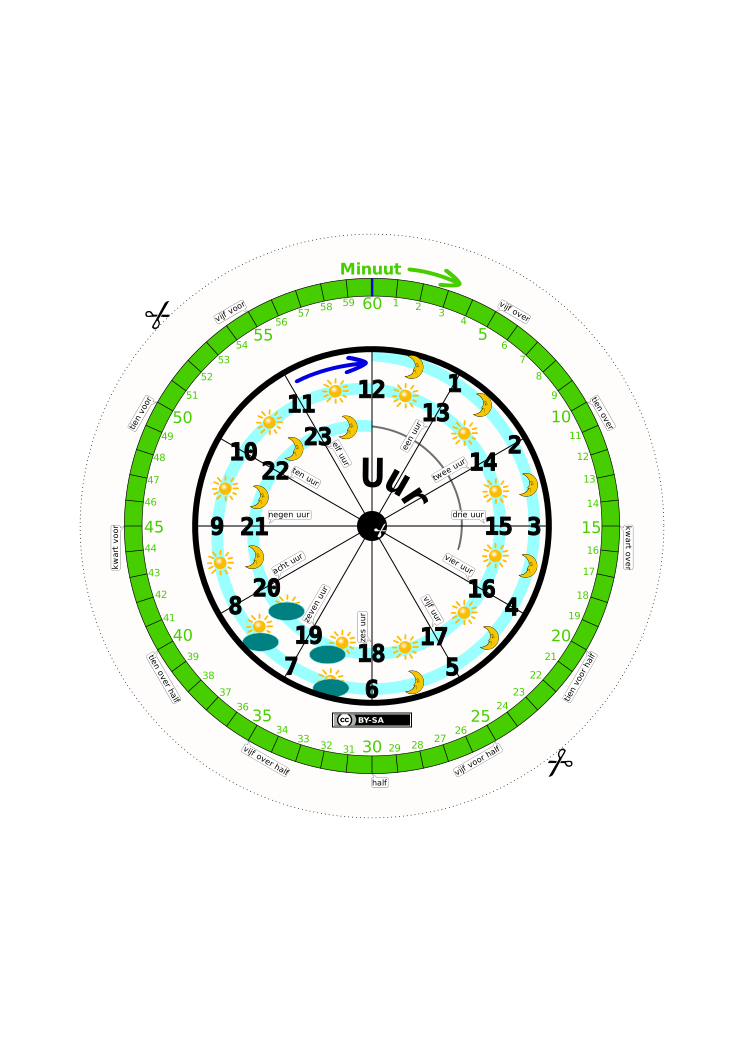
Over the years the image of the clock has been abstracted and stylized to a point where a long and a short line inside a circle, or even inside four dots on the ordinals, can be instantaneously recognized as a clock. This is perfectly fine if you already know how to read the analog clock but it makes no sense to use such a design as a teaching aid.

Stylized version of a clock

All the information is restored
As a teaching device, you need to make sure all the information that has been abstracted away has been put back.

With this high quality pdf file, any parent or teacher can turn a cheap wall clock into a practical and useful teaching aid. Try and get a clock that has a the three hands preferably in a format that you can color the minute hand green. That will assist in relating the big hand to the minute dial and the small hand to the inner hour dial.

By using a second hand that has visible motion you can explain that:
All the other information they need is given in the clock itself.
Alternatively you can print it our landscape and laminate. Cut out two card board or plastic hands and use a split pin to fix to the clock.
The original file (English, Dutch) can be opened in inkscape
Please contribute back to this project by commenting below.
Images used are Heraldic crescent by liftarn and Weather Symbols: Sun by nicubunu
After a long period of not having issues with Citrix, this old chestnut popped up again.
You have not chosen to trust “GlobalSign Root CA”, the issuer of the server;s security certificate (SSL error 61)
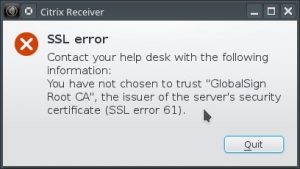
I checked back and we had this one before way back in 2012. The problem is that the cert is not in the plugin directory that wfica uses. So the solution is to get it and put it in the correct place.
At the time Firefox had removed the option to export certificates but fortunately it has bee restored.
Firefox F10 > Edit > Preferences > Advanced > Certificates > View Certificates
Scroll down and click on “GlobalSign Root CA” (under GlobalSign nv-sa), and then press Export.
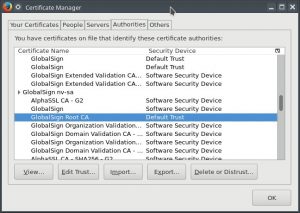
Save it somewhere.
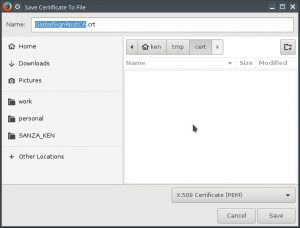
Then copy it into the correct directory.
sudo cp ~/tmp/cert/GlobalSignRootCA.crt /opt/Citrix/ICAClient/keystore/cacerts/